Podcast workflow
How to clip podcasts for TikTok.
A good podcast clip gives someone who missed the full episode enough context to understand one useful idea. Start with the moment you want to share, then refine the cut, picture and captions around it. This guide covers making a vertical video from a filmed podcast or interview in Scribix and downloading the finished file. Uploading that file to TikTok is a separate step.
Watch the workflow
41 seconds · Silent overviewBefore you start
Use a video recording that you have permission to publish. Keep the original audio: you will need to listen to the speaker while reviewing the cut and checking the captions. An audio-only episode belongs in the transcription workflow, rather than this video-clipping workflow.
Free accounts can export AI-generated clips as-is. Adjusting clip boundaries, captions, framing and branding requires a paid plan. Check current plans before following the editing steps below.
Start with a local video file. The YouTube transcript tool imports captions; it does not import the original YouTube video into this clipping workflow.
1. Upload your podcast recording
Open Scribix and choose the video file from your device. Follow the upload and processing status shown on screen. Keep the upload page open while the file is being transferred.
For the example below, we resumed an already uploaded project. The upload instructions explain how to start your own project; a new upload is not shown in the demonstration.
Begin with one recording so that you can review the results against the original conversation. Do not judge the job by the number of clips it produces: some episodes contain more self-contained moments than others.
2. Choose a moment that makes sense on its own
Play a suggested clip before editing it. Ask three questions:
Is the subject clear to someone who has not heard the episode?
Does the clip contain an answer, explanation, story or conclusion?
Does the headline accurately describe what the speaker says?
Listen to the surrounding conversation when a candidate opens with a vague reference or a reply to an unheard question. Watch for sponsor reads and repeated versions of the same idea. Keep the candidates that offer something distinct to your audience.
The podcast clip checklist gives you a repeatable review for these decisions.
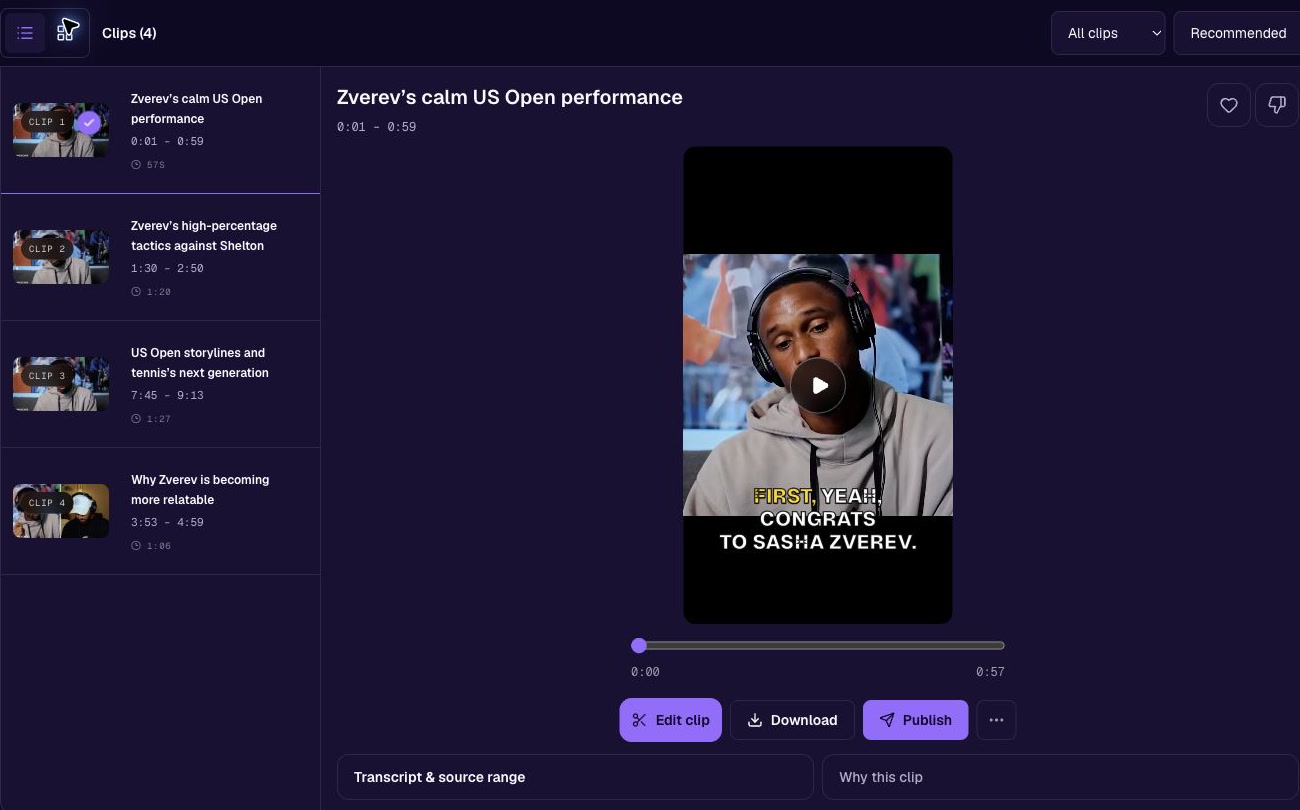
3. Refine the start and finish
With a paid plan, use the transcript and clip boundaries to find a natural opening. Include the question or setup if the answer depends on it. At the end, keep the sentence that completes the point rather than stopping immediately after the most dramatic phrase.
Play the new cut with sound. A boundary that looks neat in text can still interrupt a breath or remove a qualification. If you cannot recover a complete thought within a useful clip, choose a different moment.
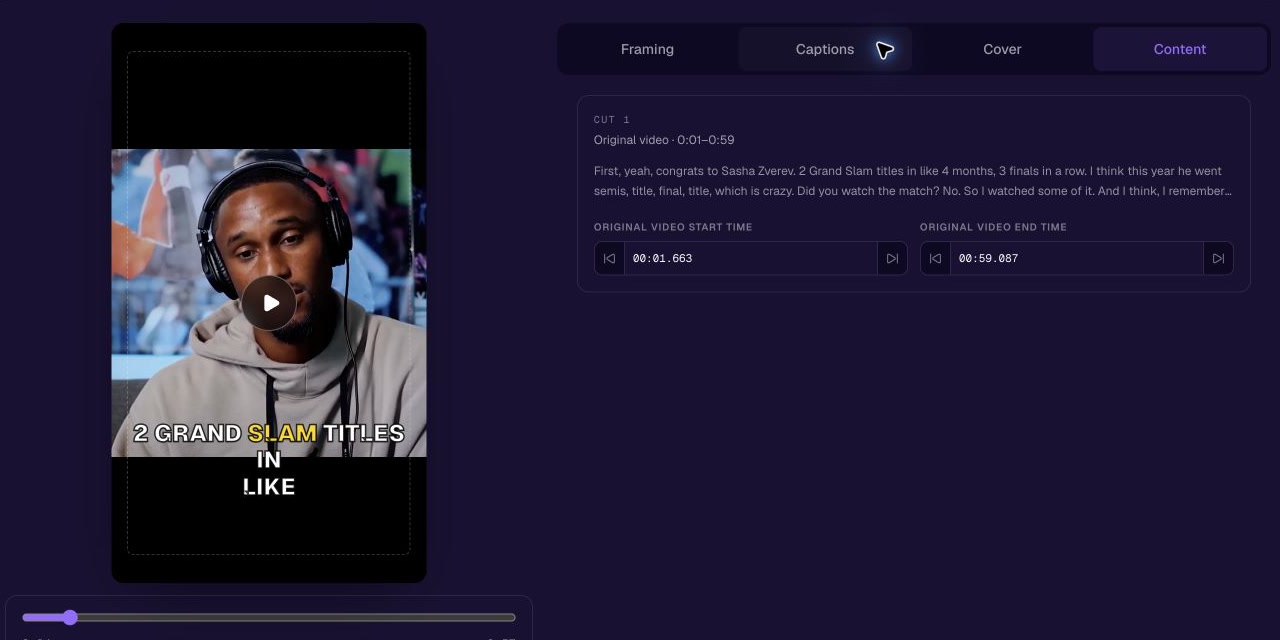
4. Check the vertical picture
Watch the whole portrait composition, not just its first frame. Follow changes of speaker, camera cuts and gestures. Check that the crop keeps the person and anything they refer to visible.
Adjust the framing when it loses important information. A wider composition can be preferable to a close-up when two people or a presentation need to remain in view. Do not assume that automatic framing has handled every transition correctly.
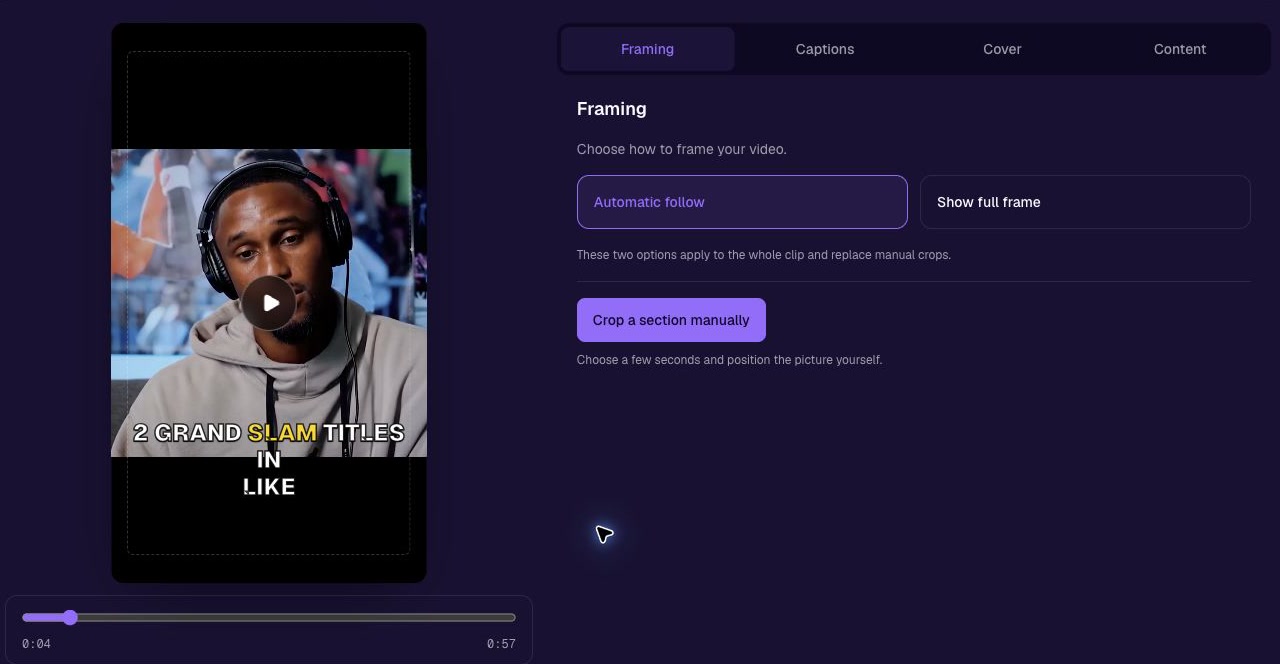
Choosing between a crop and the full frame? Read the horizontal-to-vertical framing guide
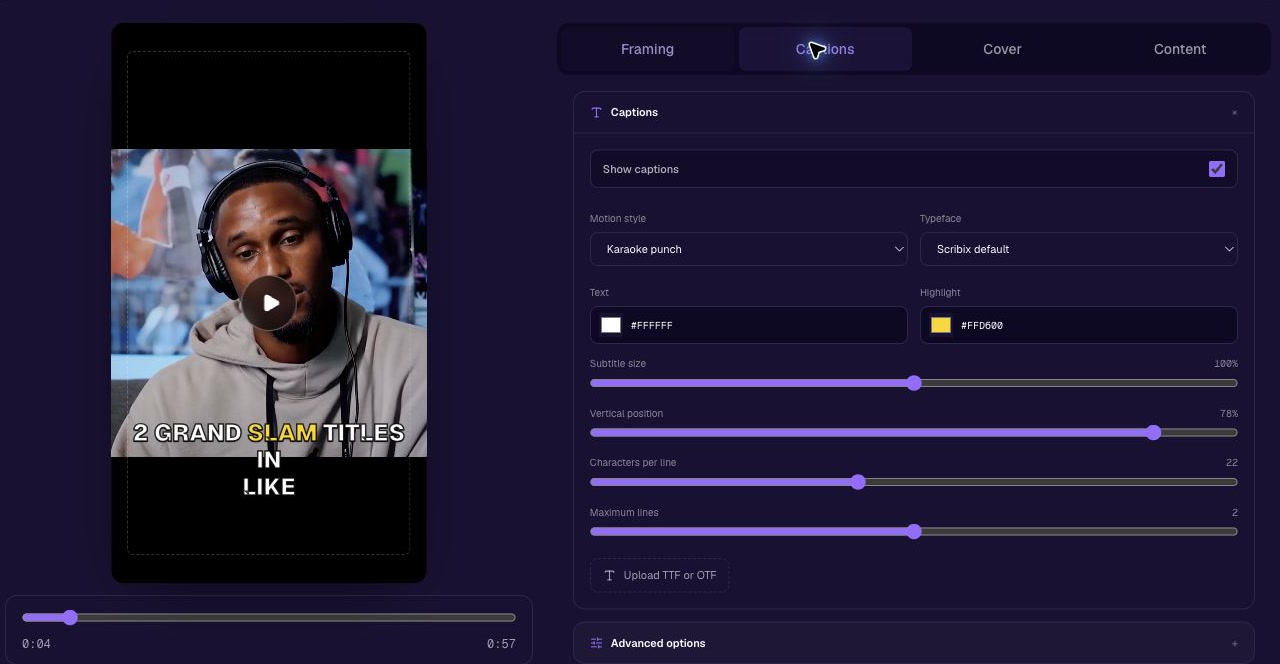
5. Correct and style the captions
Listen while reading the captions. Pay particular attention to names, numbers, specialist terms and words such as “not.” Correct the text before choosing the style.
Review the result at a phone-sized display. Check line breaks, contrast, timing and placement. Avoid covering the speaker’s face or making an opening title compete with the captions. Check placement again in TikTok’s upload preview, where the app adds its own interface.
6. Export and review the actual file
Choose Download in the clip editor. While the render is running, the control shows Preparing your video. When the file is ready, use Download to save it. The example below was generated from this project during the walkthrough.
Generate the finished clip and download it. Play the downloaded video from beginning to end with sound. Check the cut, captions, framing, first and last frames, and audio.
Make sure your cover and post copy describe this final version. If you change the clip after exporting, create and review the updated file before publishing. Keep the approved download clearly named so that you do not upload an older draft.
Before you post
Preview the file in TikTok and check how the video looks with the platform interface around it. Confirm your intended audience and post details there. This walkthrough does not assume that your Scribix account is connected to TikTok or that a direct publishing flow has been tested.
You do not need to publish every suggested clip. A smaller set of clear, accurate moments can serve your audience better than a batch you have not reviewed.
Start with your video podcast.
Open the podcast clip checklist
Next step: Make and review a podcast clip with Scribix.